For Developers (from Source)
This page explains how to download, build, and install PlatoSim from its source code. Follow this route if you want to change the code or contribute to it, or if the Conda installation is not available for your system. The page has three parts:
Step 1: Check the requirements
Make sure that all software listed in the requirements is installed, in particular a C++14 compiler and CMake 3.26 or more recent. You can check the versions with:
gcc --version      # or: clang --version
cmake --version
uv --version
Want to use a different compiler?
To build with a compiler other than the system default, export the variables CC and CXX before you build,
for example:
export CC=gcc-14
export CXX=g++-14
Step 2: Download the code
Download the source code with Git. This creates a directory called PlatoSim3:
git clone https://github.com/IvS-KULeuven/PlatoSim3.git
cd PlatoSim3
You now have the develop branch, which contains the latest development version. To use the latest stable release
instead, switch to the master branch (see Branches and releases):
git checkout master
Note
If you plan to contribute to PlatoSim, clone your own fork of the repository instead. See Contribute to the code.
Step 3: Build PlatoSim
PlatoSim uses a number of C++ libraries (zlib, HDF5, yaml-cpp, Armadillo, FFTW, Faddeeva, and ZeroMQ). They are included in
the dependencies/ directory, so you do not have to download them yourself. The script install.sh builds these
libraries and then PlatoSim itself. From the PlatoSim3 directory, run:
./install.sh -j 4
This takes a while, because all libraries are compiled from source. The option -j sets how many files are compiled
in parallel (4 if you leave it out). Set it to the number of CPU cores of your computer (nproc on Linux,
sysctl -n hw.ncpu on macOS) to speed up the build. As an indication, the full build takes about 13 minutes on a
Linux computer with -j 4.
The script stops as soon as something fails. When it finishes successfully, the simulator is available as
build/platosim.
The build fails?
Check that your CMake and compiler meet the requirements. An old CMake is the most common cause.
Build the libraries one by one to find out which one fails (run these from the
PlatoSim3directory, in this order: HDF5 needs zlib). Each script compiles 4 files in parallel; to change that, first run e.g.export INSTALL_NUM_THREADS=8.python3 ./dependencies/installscripts/install_zlib.py python3 ./dependencies/installscripts/install_hdf5.py python3 ./dependencies/installscripts/install_yaml.py python3 ./dependencies/installscripts/install_armadillo.py python3 ./dependencies/installscripts/install_fftw.py python3 ./dependencies/installscripts/install_faddeeva.py python3 ./dependencies/installscripts/install_zeromq.py
Still stuck? Open an issue and attach the full output of the build, which you can save with
./install.sh > output.txt 2> errors.txt.
Step 4: Install the Python packages
PlatoSim’s Python interface needs Python 3.12 or 3.13 (3.12 recommended), and a number of Python packages. We use uv to install them. If you do not have uv yet, install it by following uv’s documentation, for example:
curl -LsSf https://astral.sh/uv/install.sh | sh
You do not need to install Python yourself: uv downloads Python 3.12 if needed. From the PlatoSim3 directory,
run:
uv sync --python 3.12
This creates a virtual environment in the directory PlatoSim3/.venv and installs PlatoSim’s Python package
together with everything needed for the Jupyter notebook tutorials. Activate this environment whenever you use
PlatoSim from Python:
source .venv/bin/activate
Alternatively, put uv run in front of a command to run it inside the environment without activating it (e.g.
uv run jupyter notebook).
Optional dependency groups
Extra packages are organised in dependency groups in the file pyproject.toml:
Group |
What it is for |
|---|---|
|
Querying star catalogues with |
|
Simulating variable sources with |
|
|
|
The PLATOnium L1 pipeline setup |
|
The HDF5 viewer argos |
|
Building this documentation (see the |
Add groups with --group:
uv sync --python 3.12 --group tools --group docs
Warning
uv sync removes every package that you do not ask for. Always list all the groups you need in one command;
running uv sync --group tools and then uv sync --group docs leaves you with only the docs group.
Step 5: Set the environment variables
PlatoSim needs to know where it is installed, and your shell needs to find the platosim executable. Run the
following commands from the PlatoSim3 directory. The working directory $HOME/platosim_workdir is an example;
choose any directory outside PlatoSim3 for your own files (see Prerequisites).
export PLATO_PROJECT_HOME=$(pwd)
export PLATO_WORKDIR=$HOME/platosim_workdir
export PATH=$PLATO_PROJECT_HOME/build:$PATH
mkdir -p $PLATO_WORKDIR
These variables only last until you close the terminal. To set them permanently, add the three export lines to
your shell start-up file: ~/.bashrc for bash (the default on Linux) or ~/.zshrc for zsh (the default on
macOS). In that file, replace $(pwd) by the full path to your PlatoSim3 directory, e.g.
export PLATO_PROJECT_HOME=$HOME/PlatoSim3.
Step 6: Check the installation
Both of the following commands should run without errors:
platosim -version
uv run python -c "import platosim"
You are ready to run your first simulation.
Keep your installation up to date
The develop branch is updated regularly; the master branch is updated at each release. To get the latest
version of the branch you are on, go to the PlatoSim3 directory and run:
git pull
If you cloned your fork, pull from the main repository instead, e.g. git pull upstream develop (see
Contribute to the code). After pulling, update your installation:
Rebuild PlatoSim after every update of the C++ code. This does not rebuild the bundled libraries, so it is much
faster than install.sh:
cd build
cmake ..
make -j 4
cd ..
Update the Python packages, in case pyproject.toml changed (list the same groups as before):
uv sync --python 3.12
When the bundled libraries change (we announce this in the release notes), remove the old libraries and run the full installation again:
rm -rf dependencies/Installs
./install.sh
Warning
git pull only works smoothly if you have not changed any of the files that are tracked by Git. Keep your own
configuration files and simulations in your working directory ($PLATO_WORKDIR), not inside PlatoSim3.
Branches and releases
PlatoSim uses two permanent branches:
master: the latest stable release, which is tested and safe to use;develop: the latest development version, which may be experimental at times.
Releases are tagged on the master branch (e.g. 3.8.0). List the available releases with git tag -l, or see
the releases on GitHub. To switch to a branch or a release, use
git checkout, for example:
git checkout master         # latest stable release
git checkout develop        # latest development version
git checkout 3.8.0          # a specific release
After switching, rebuild PlatoSim and run uv sync --python 3.12 again.
Contribute to the code
We welcome contributions through pull requests on GitHub. You need a free GitHub account.
1. Fork and clone the repository
Go to the PlatoSim repository and press the Fork button at the top
right. This creates your own copy of the repository on GitHub, called your fork (or origin). The main repository
is called upstream.
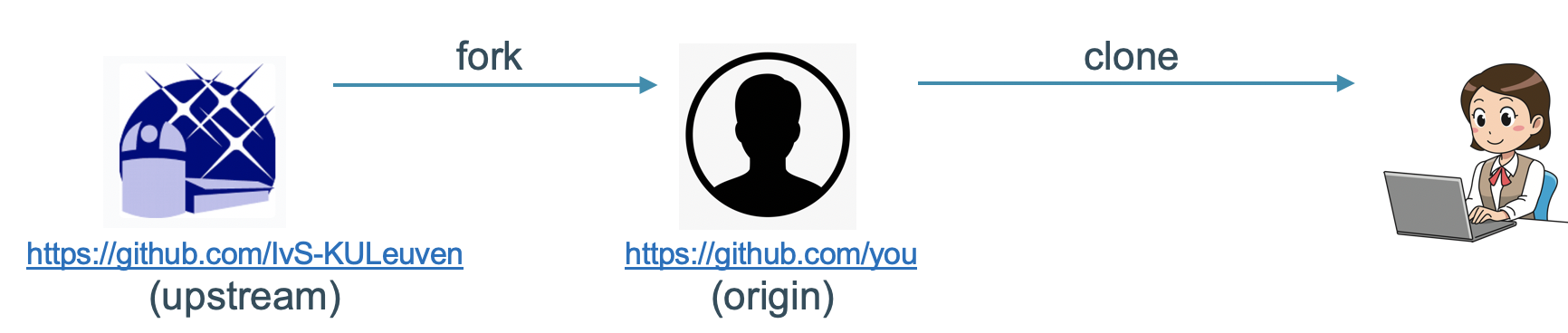
Clone your fork (instead of the main repository, see Step 2) and connect it to the main repository:
git clone https://github.com/<your-GitHub-username>/PlatoSim3.git
cd PlatoSim3
git remote add upstream https://github.com/IvS-KULeuven/PlatoSim3.git
Check the result with git remote -v, which should list both origin (your fork) and upstream. Then continue
with Step 3 to build PlatoSim.
To push to GitHub, Git needs to know who you are. The easiest options are to connect with SSH or to log in with the GitHub CLI (gh auth login).
2. Make your changes on a new branch
Start from the latest develop branch of the main repository and create a branch for your work:
git checkout develop
git pull upstream develop
git checkout -b <short-description-of-your-change>
Make your changes, then stage and commit them. Keep each commit focused and write a clear commit message:
git status                       # see which files changed
git add <path/to/changed/file>
git commit -m "<what you changed and why>"
3. Run the validation suite
PlatoSim has a suite of validation tests. Run it before you open a pull request; all tests should report Success.
Rebuild PlatoSim first and make sure the environment variables are set. The tests also need the default mapped PSF file PSF_Focus_0mu.hdf5 (8.9 GB)
in the inputfiles directory; download it once as described under PSF data packages. From the
PlatoSim3 directory, run:
uv run python tests/validationTests/scripts/run.py
The suite runs about 50 tests and takes roughly half an hour. It prints its results only when it has finished. The
tests write about 11 GB of output to tests/validationTests/ioFiles, which you can delete afterwards.
4. Push your branch and open a pull request
Push your branch to your fork:
git push origin <short-description-of-your-change>
GitHub then shows a link to open a pull request. Alternatively, go to the PlatoSim repository, open the Pull requests tab, press New pull request, and select
compare across forks. Choose develop of IvS-KULeuven/PlatoSim3 as the base and your branch as the compare
branch. The development team will review your changes.
